



After updating MECM we noticed SCCM 2409 clients not getting Windows Updates. After a bit of research and reading various posts (this one was the most helpful), I managed to wrap my head around it.
The cause seems to be a hotfix that was released for 2403 specifically KB 28458746 Software update client fix for 2403.
There seems to be a theme with MECM causing issues with Windows update settings, I have covered an issue here in the past with a previous hotfix causing similar issues. The above fix seems to abandoned the attempt to control these settings via the MECM client. Instead it leaves controlling these update policies to the admin.
TL;DR: The MECM client stops managing update settings and leaves the admin to set these manually. Any registry keys set by the previous MECM client persist and have to be updated via another method (GPO/Intune).
For us, existing devices didn’t have a problem, they were receiving the most recent cumulative updates without issue. The problem started with newly imaged devices.
This is because (for us) the MECM client was creating the correct registry settings which pointed the device to receive it’s updates from our WSUS. When the client was updated from 5.00.9128.1007 (2403) to 5.00.9132.1011 (2409) these old settings persisted.
However, when a new device was imaged (or reimaged) these settings were absent, so the devices defaulted to pulling their updates from online.
Comparing the registry of an existing device and a newly imaged device you can see the difference. Under HKEY_LOCAL_MACHINE\SOFTWARE\Policies\Microsoft\Windows\WindowsUpdate you can see on an existing device the ‘SetPolicyDrivenUpdateSourceFor‘ keys referenced in the KB are present.


Compare this to a newly imaged device and these keys are missing.


This can also be seen if you run a gpresult on an existing client. At this point there are no GPO’s controlling update settings on the client, ‘Local Group Policy’ in this case means ‘set by something else’. In this instance the MECM client.

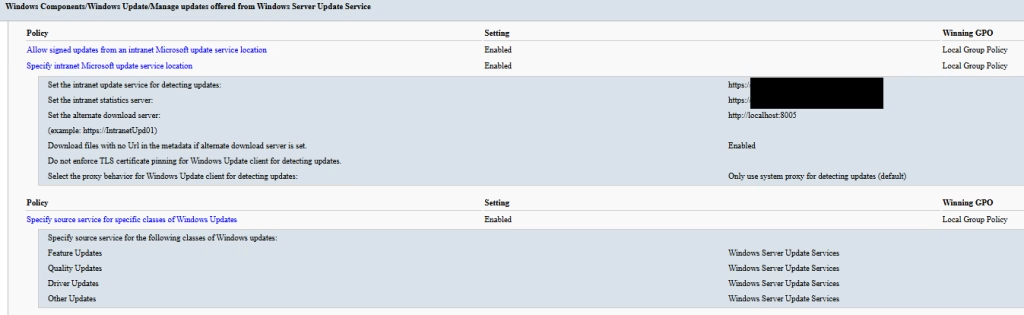
To solve this problem we need to set a policy to point our devices to the desired update location. In my case WSUS. This can be done via Group Policy or Intune, I used Group Policy.
Create a new GPO and enable the policy ‘Specify source service for specific classes of Windows Updates‘ which is located in ‘Computer Configuration\Administrative Templates\Windows Components\Windows Update\Manage updates offered from Windows Server Update Service\‘. Set the drop downs for each class to Windows Server Update Services or Windows Update as desired.

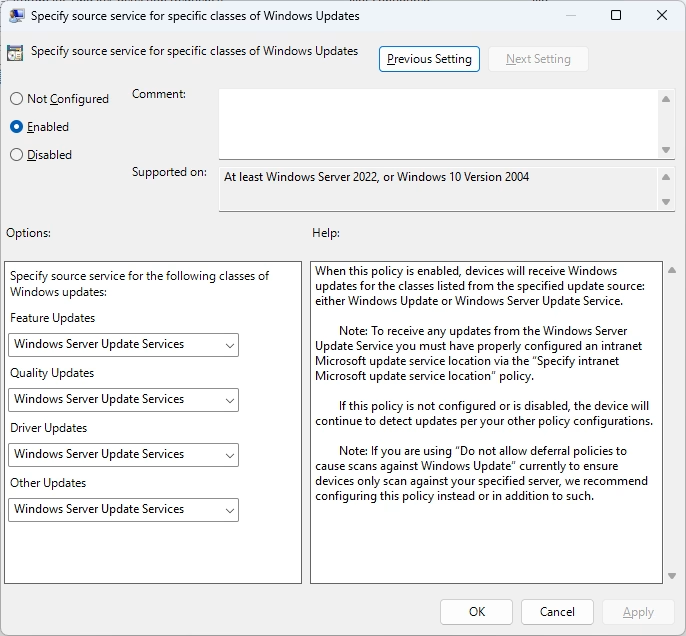
Link this GPO to the desired OU, wait for the policy to take effect and rerun the gpresult to confirm (you will also see these settings reflected in the registry).

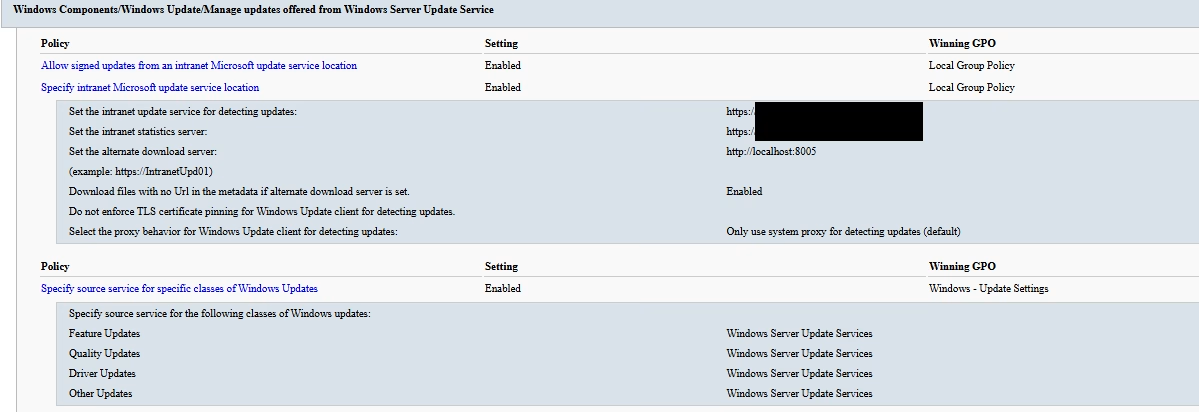
With this in place your clients will pull their updates from the specified sources, which for us was WSUS via MECM.