



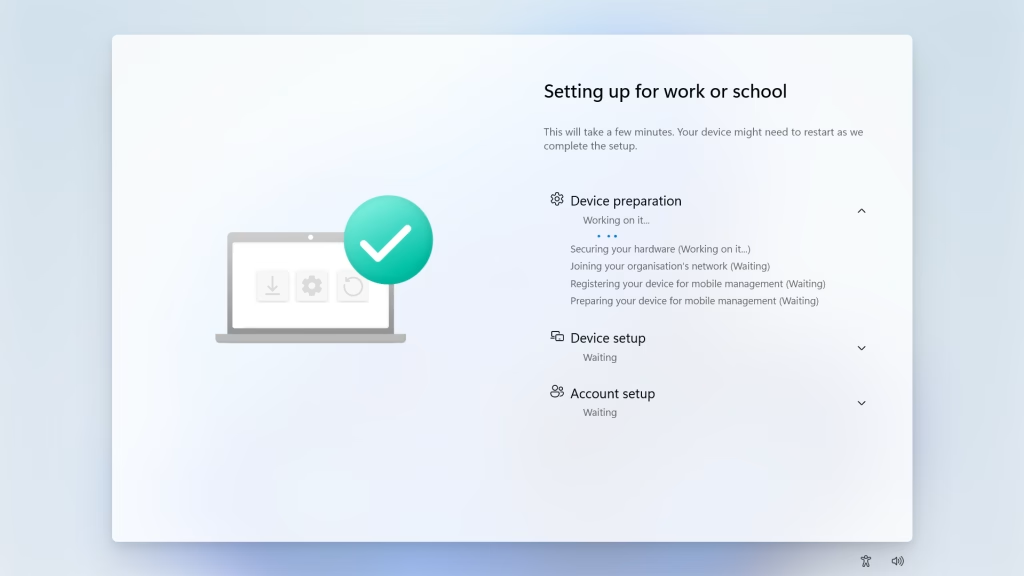
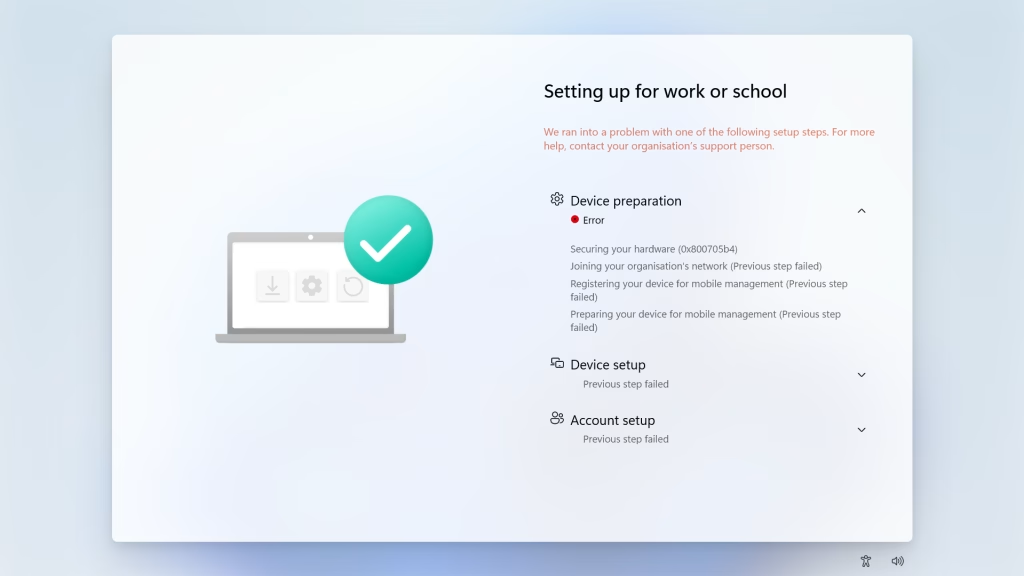
Recently when self-deploying some laptops with Windows Autopilot I hit the error ‘Securing your hardware (0x800705b4)’.
These devices were being deployed using self-deploying mode which along with pre-provisioning relies on TPM attestation.
TL;DR: Make sure all URLs required for TPM attestation are whitelisted including proserv.intel.com.
The error ‘Securing your hardware (0x800705b4)’ can be caused by lots of different issues. This is one that I came across.
Issue
When at the Enrolment Status Page, devices were timing out and displaying ‘Securing your hardware (0x800705b4)’. This pointed to an issue with the TPM.

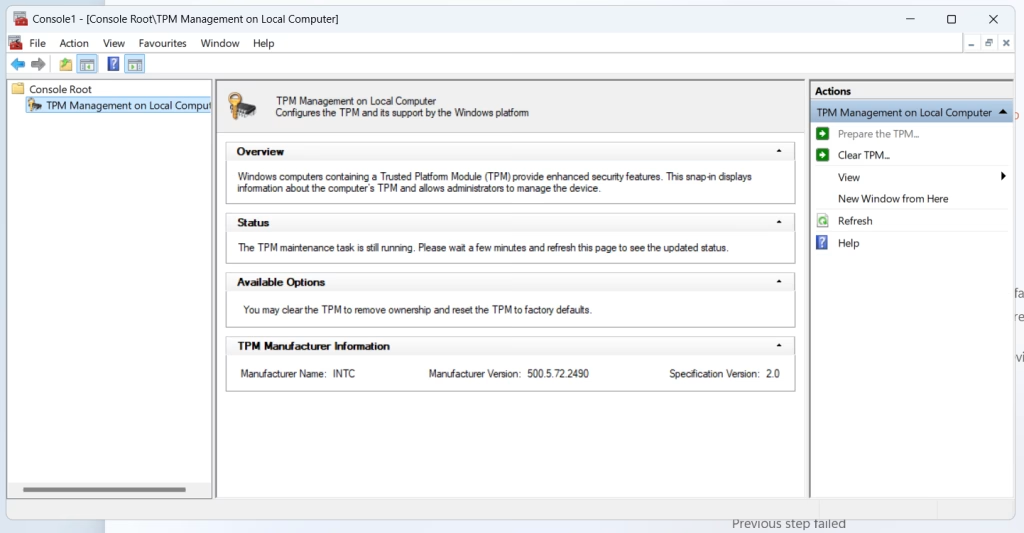
To get to the bottom of the issue I first opened CMD by pressing ‘Shift + F10‘ and ran tpm.msc
From this you can see the TPM maintenance task is still running.

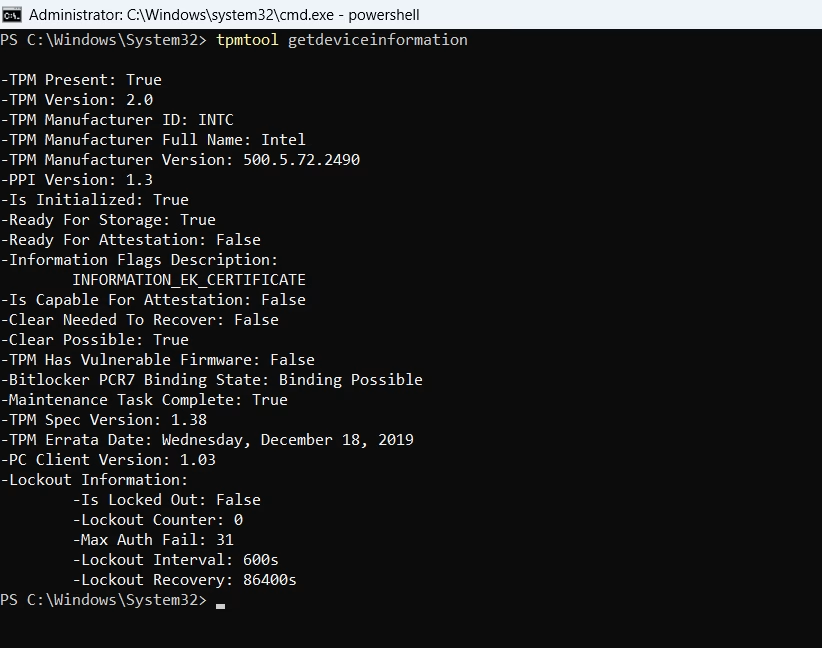
You can also see from the below command that the ‘Ready For Attestation’ field is ‘False‘.
tpmtool getdeviceinformation
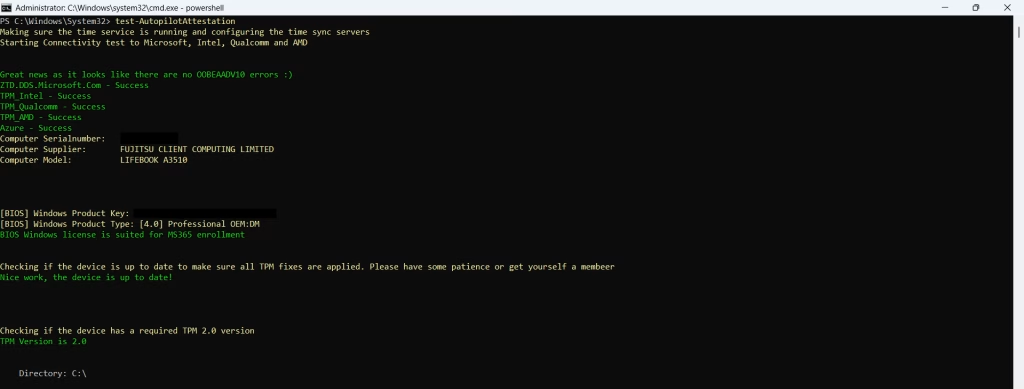
I then ran the handy Autopilottestattestation tool (shout out to great Rudy Ooms!), the article here covers it:
The test was showing that connectivity was good and that there were no issues with the TPM itself. But it was missing/unable to enrol the EK Cert.


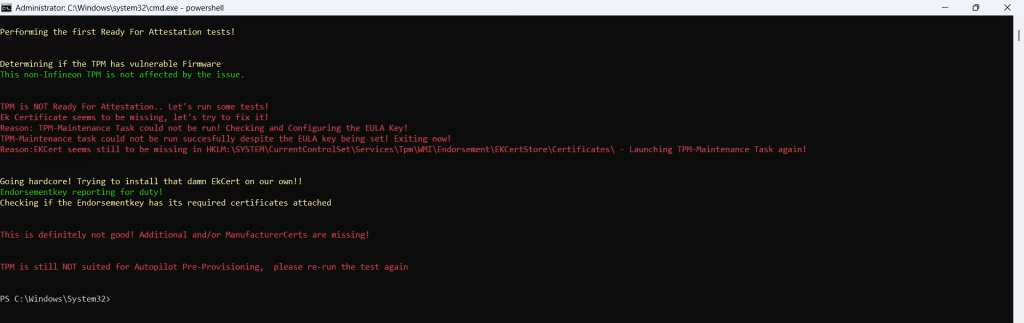
After some digging on our web filter, I realised that the device was trying to reach proserv.intel.com.
However, this URL isn’t listed in the Microsoft documentation. I did find it referenced in a few places, one of which was on the Intel forum of someone who was also having TPM attestation issues.
Solution
After adding this URL to our web filter to bypass any restrictions. I retired tpm.msc and tpmtool which was now showing the TPM as ready. I also reran Test-Autopilottestattestation which passed with no issues.
With the TPM now ready, we can rerun the previous steps. Unfortunately, there isn’t a button you can click do this. However, you can remove some registry keys to kick it off again.
These next steps are taken from here:
Open regedit with CMD and navigate to ‘HKEY_LOCAL_MACHINE\SOFTWARE\Microsoft\Provisioning\AutopilotSettings’
You then need to delete the 3 registry keys listed below
- AccountSetupCategory.Status
- DevicePreparationCategory.Status
- DeviceSetupCategory.Status
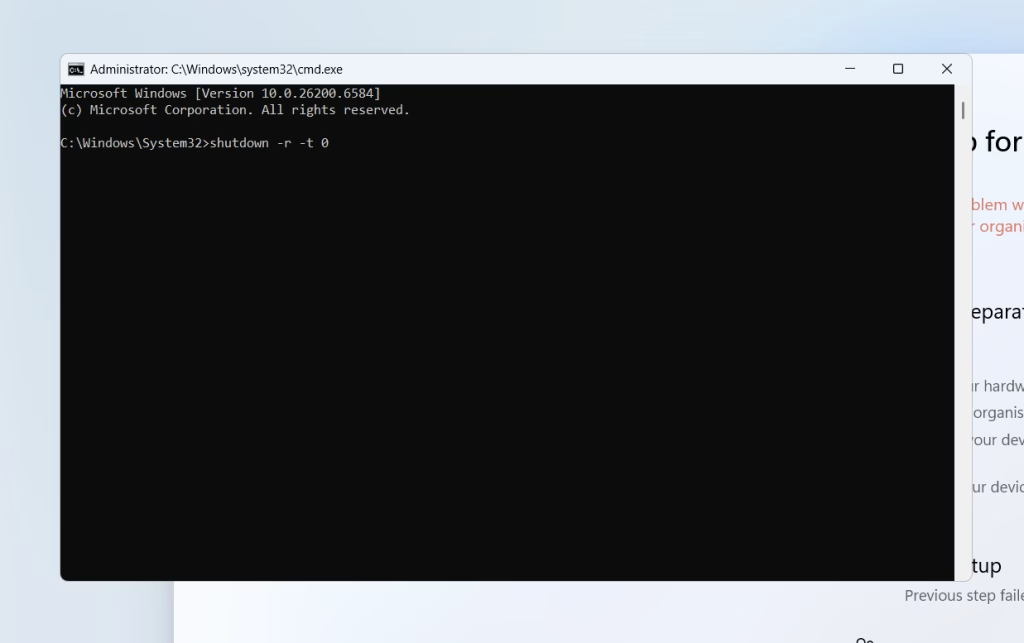
Come back to your CMD window and run ‘shutdown -r -t 0‘ to reboot the device.

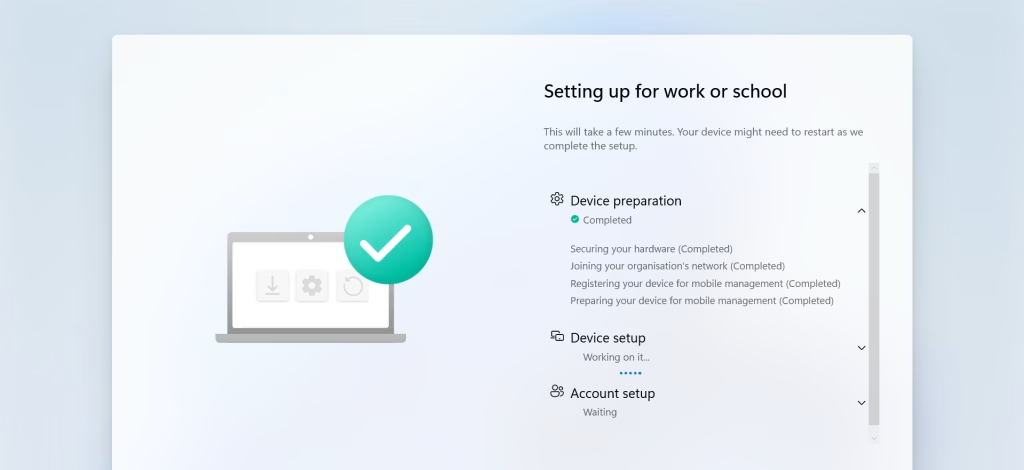
Once the device has restarted it should rerun the previous steps and hopefully complete!

Conclusion
Though this was an easy fix in the end, getting to the root cause took a little while as I had already whitelisted the URLs listed by Microsoft. I also couldn’t find much information on the URL the device was trying to reach. However with the help of some useful tools I got the issue resolved!