



After moving our wireless authentication to PEAP EAP-TLS (covered here) a handful of our older devices wouldn’t connect. The error from the client was ‘EAP-TLS Error: 0x9009030C‘
See: Configure EAP-TLS Authentication with NPS to enable PEAP-TLS authentication.
TL;DR: Older clients had a certificate issued before May 2022 which were missing the ‘1.3.6.1.4.1.311.25.2‘ extension. Renew the client certificate to fix the issue.
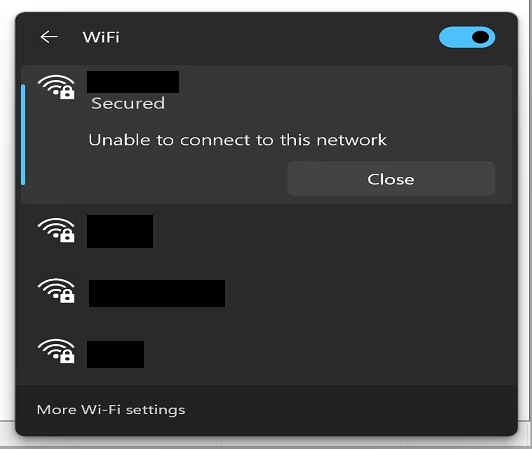
Trying to connect to the wireless network gave an ‘Unable to connect to this network message‘

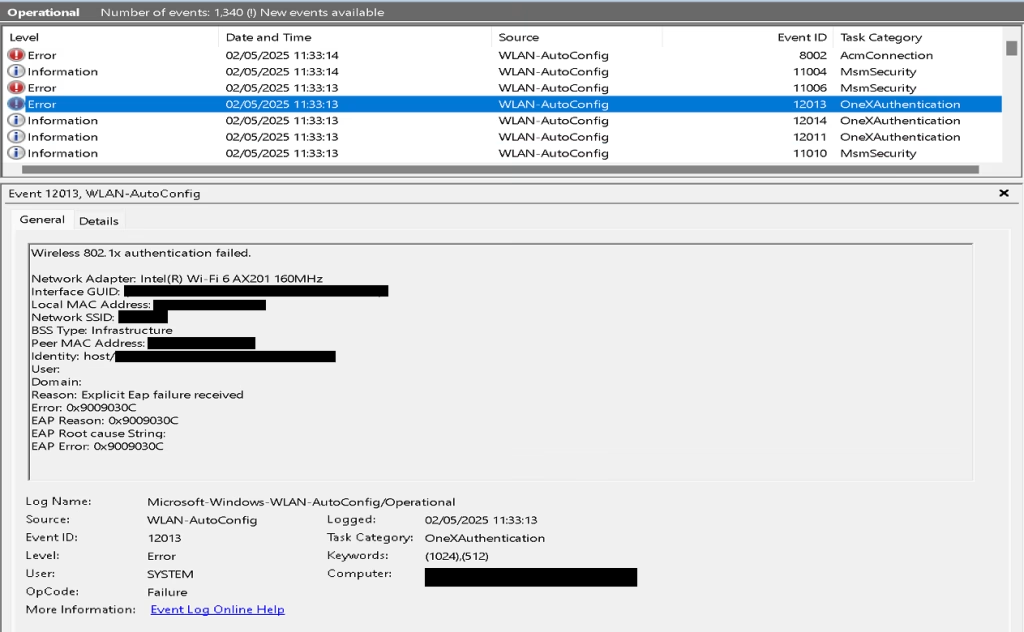
After checking the event logs on the client under ‘Application and Services Logs > Microsoft > Windows > WLAN-AutoConfig > Operational’ I was getting ‘EAP Error: 0x9009030C‘

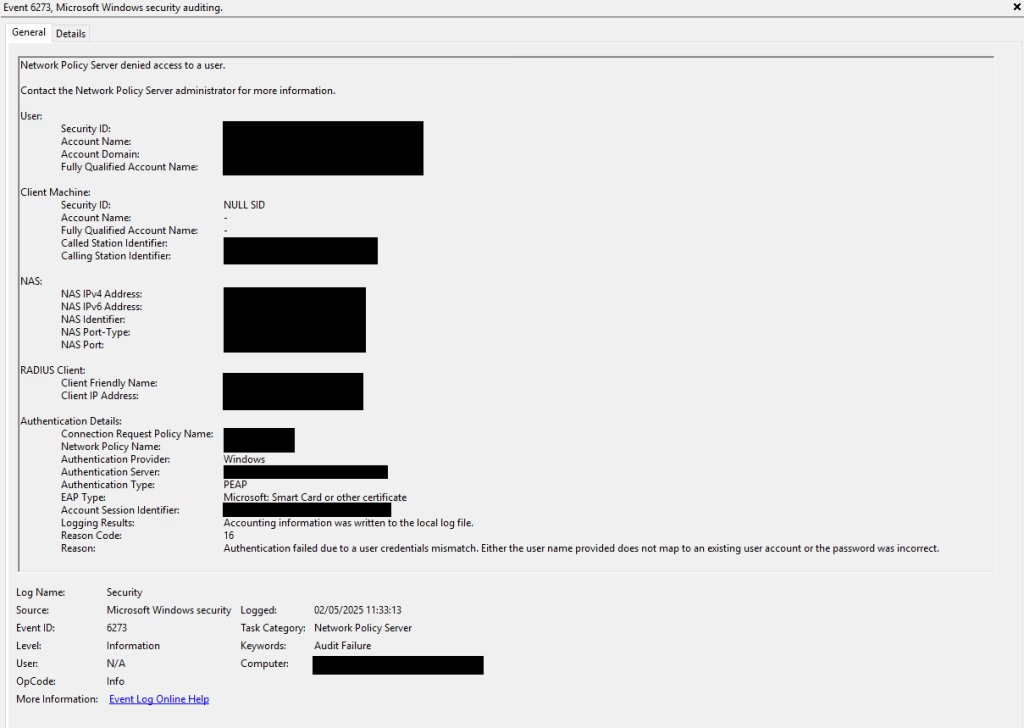
The network policy server (NPS) was showing ‘Reason Code: 16‘ ‘Authentication failed due to a user credentials mismatch. Either the user name provided does not map to an existing user account or the password was incorrect.‘ and denying access.

After a bit of searching I came across two articles which pointed to the problem:
Logins via the Network Policy Server (NPS) fail with reason “Authentication failed
Strong Certificate Mapping Enforcement February 2025
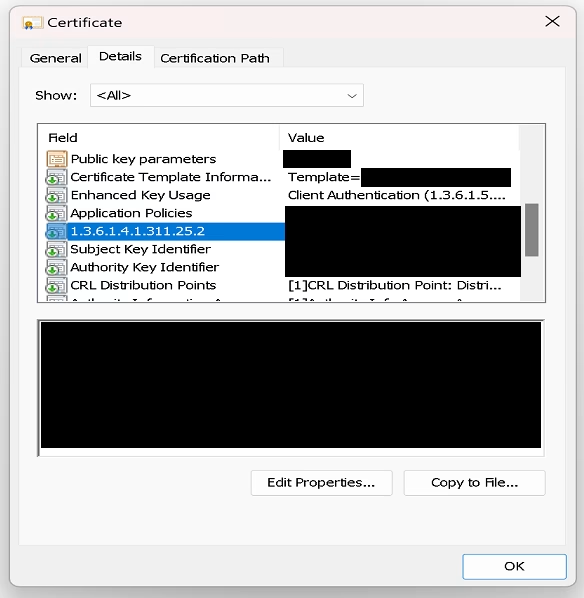
With this I compared a working devices client certificate to a non-working one. As you can see the working certificate has the ‘1.3.6.1.4.1.311.25.2‘ extension.

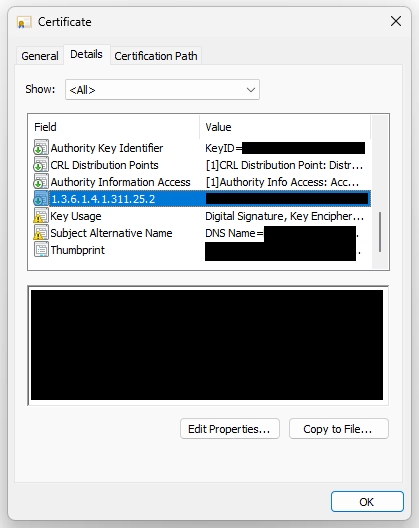
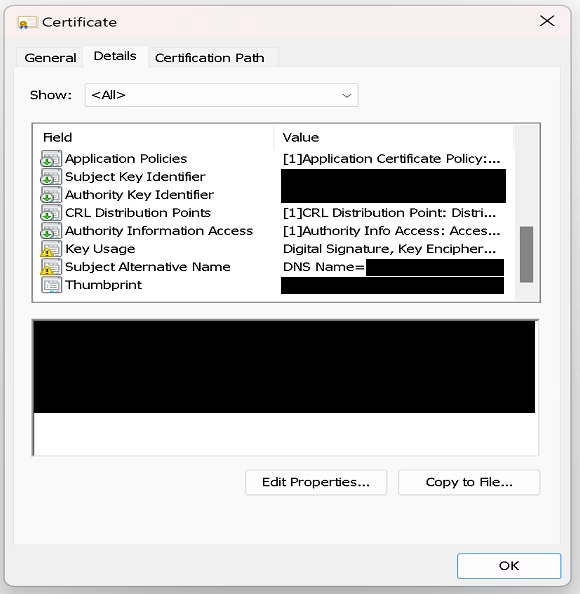
Where as a certificate form a non-working device is missing this extension.

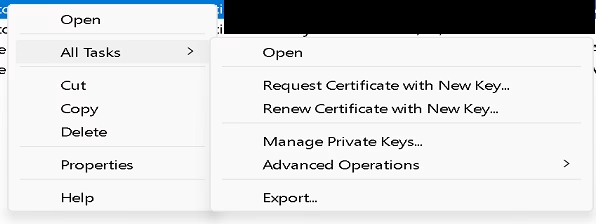
On a problematic device I navigated to the Local Computer certificate store, right clicked the relevant certificate and under ‘All Tasks‘ clicked ‘Renew Certificate with new Key‘.

Once I ran through the prompts and checked the renewed certificate, the missing extension was now present.

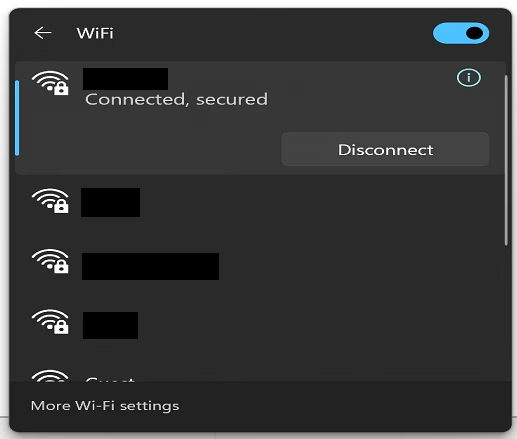
With this done I tried the wireless network again with success.

A fairly straight forward fix but not the most obvious issue to spot! The break down of changes are detailed in the Microsoft KB5014754 article.