
I recently had to convert user mailbox to shared mailbox in Exchange Hybrid. There are some guides out there which are helpful, but I wanted to highlight a problem that can occur in a hybrid environment when a mailbox has been migrated.
TL;DR: If a mailbox has been migrated from Exchange on-premises to Exchange Online the mailbox has to be converted on both sides.
To convert an O365 user mailbox to a shared mailbox you would normally just make the change on-premises and sync it up. Which is what we are going to do first.
Convert a Mailbox (not migrated)
First you need to connect to your on-premises Exchange instance through the Exchange Management Shell. Once connected, check the status of the mailbox you would like to convert.
Get-RemoteMailbox "test@example.com"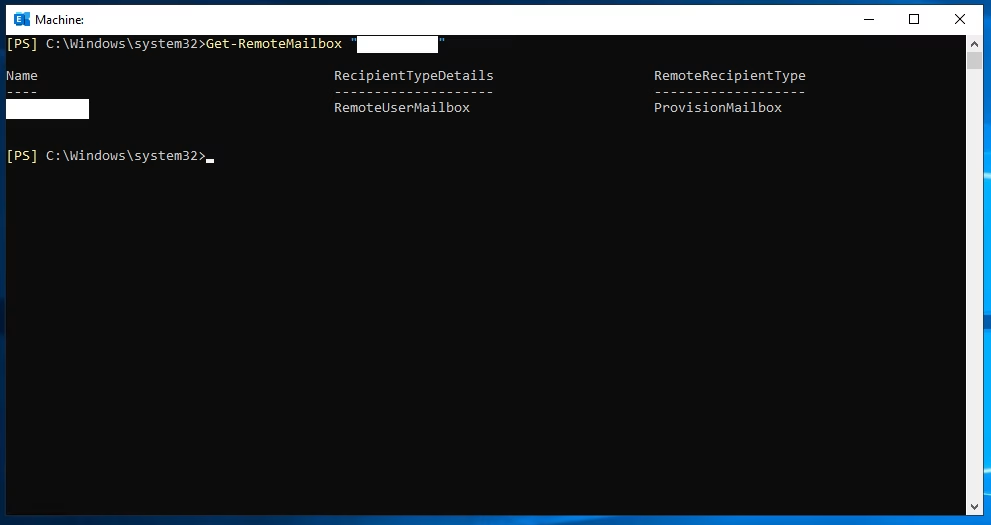
We can see from the output that the mailbox is in Exchange Online as the ‘RecipientTypeDetails’ field shows as ‘RemoteUserMailbox’. We can also see that it’s a ‘native’ Exchange Online mailbox as the ‘RemoteRecipientType’ field shows as ‘ProvisionMailbox’. Because of this we only need to convert it on-premises and sync the changes up.
Next, convert the mailbox to a shared mailbox.
Set-RemoteMailbox "test@example.com" -Type Shared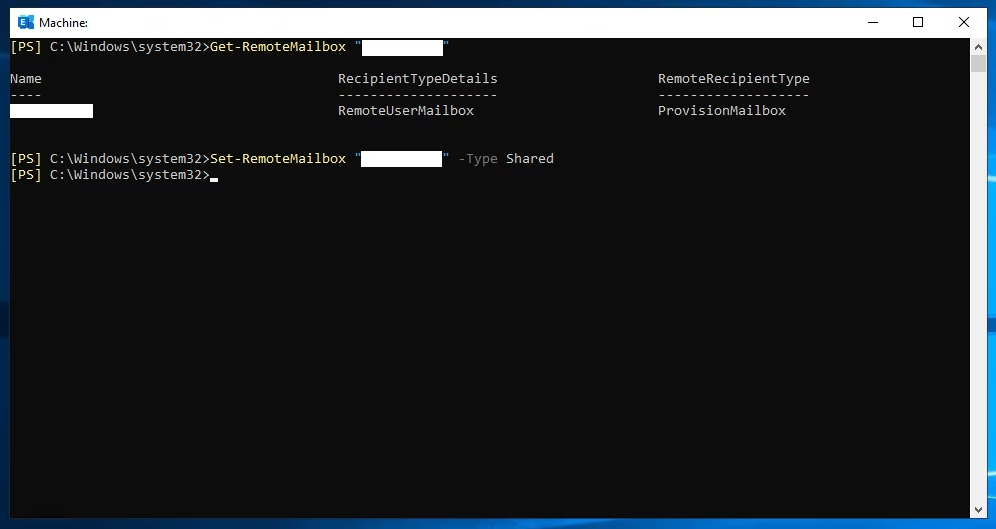
We can then disable the user in the local Active Directory and force a sync on the server running Azure AD Connect by running the following PowerShell command.
Start-ADSyncSyncCycle -PolicyType DeltaWe can re-run the first command to check that the mailbox is now a shared mailbox.
Get-RemoteMailbox "test@example.com"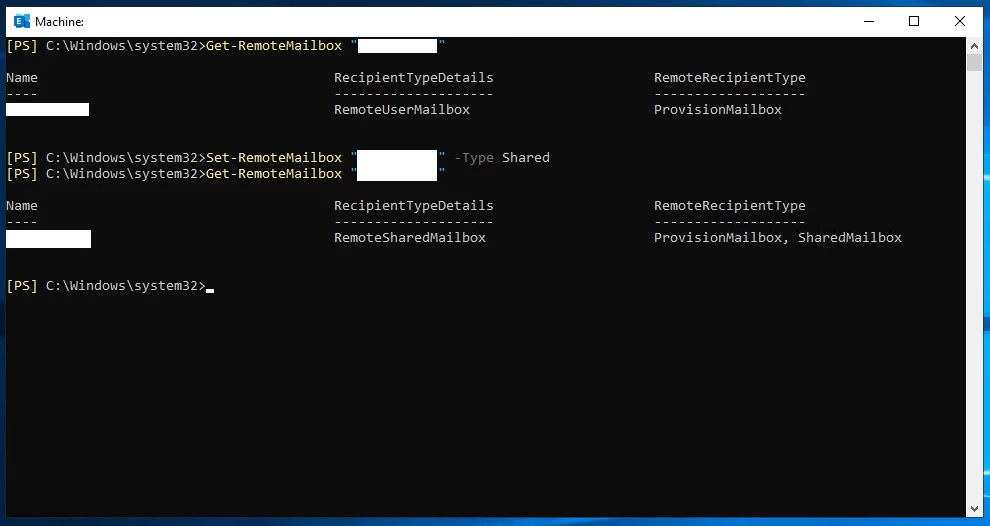
Both values now show as ‘RemoteSharedMailbox’ and ‘SharedMailbox’ respectively.
Once the result of the Azure AD Connect sync has been digested in the cloud, we should now see that the relevant mailbox is listed as a shared mailbox in Exchange Online.
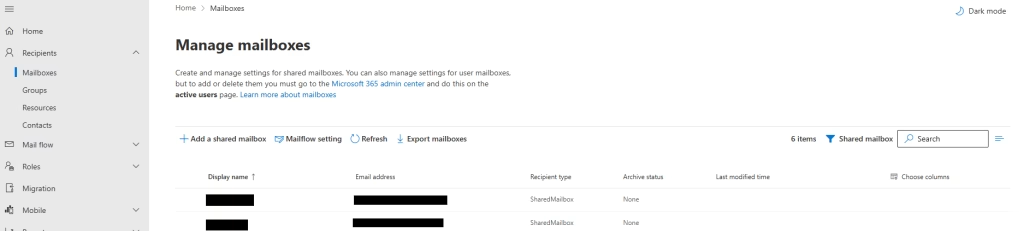
With a non-migrated mailbox these are all the steps we need to take.
The problem comes if the mailbox was originally migrated from Exchange on-premises to Exchange Online. To convert user mailbox that has been migrated, read on.
Converting a Mailbox (migrated)
In this situation the mailbox in Exchange Online is never converted to a shared mailbox and can become disconnected as described here.
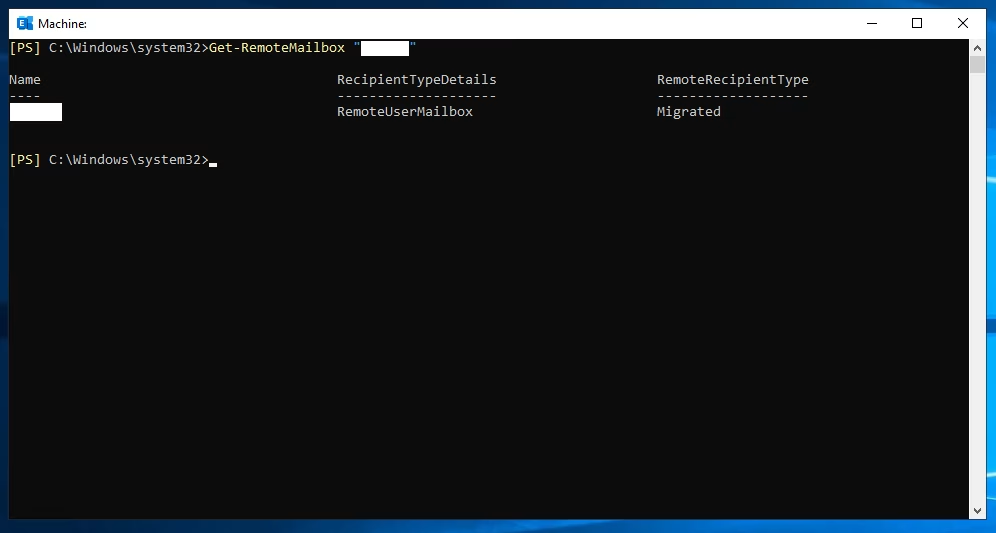
To remedy this, as well as doing the previous, we must run some extra steps. To see if the mailbox has previously been migrated, we need to go back to the first step. If the result of the ‘Get-RemoteMailbox’ command returns a ‘RemoteRecipientType’ of ‘Migrated’, there are some additional steps we need to take.
Firstly, we need to connect to Exchange Online, the details on how are here. After installing and importing the module this does the trick for most.
Connect-ExchangeOnline -UserPrincipalName <admin@example.com>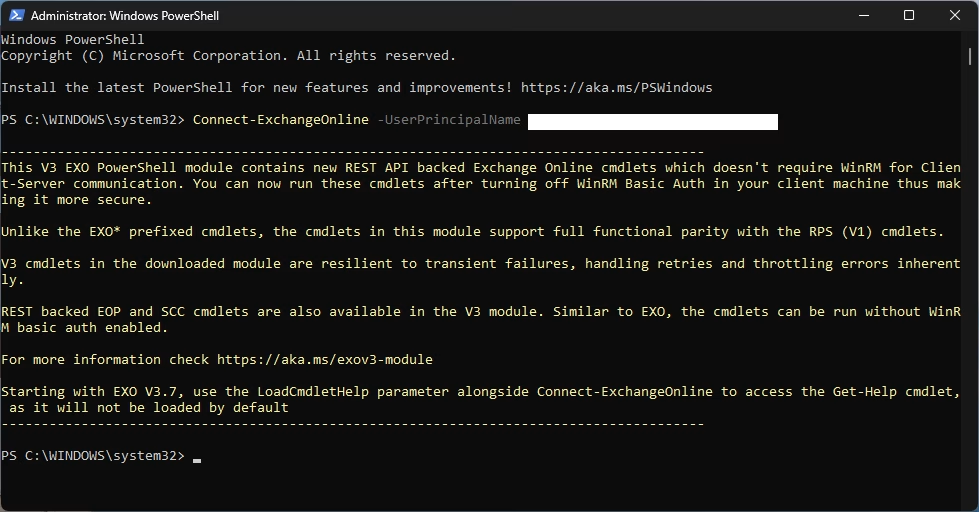
We can verify that the mailbox is still showing as a user mailbox by running the following.
Get-MailBox "test@example.com" | Format-List RecipientTypeDetails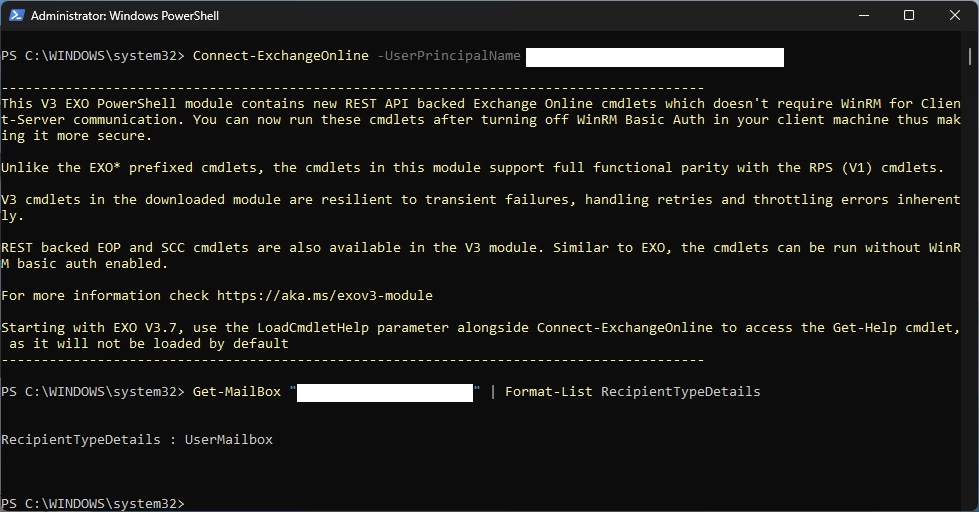
From this we can see that the ‘RecipientTypeDetails’ is still showing as ‘UserMailbox’
To rectify this, we need to run the following command. This will convert the user mailbox to a shared mailbox on the Exchange Online side as well.
Set-MailBox "test@example.com" -Type Shared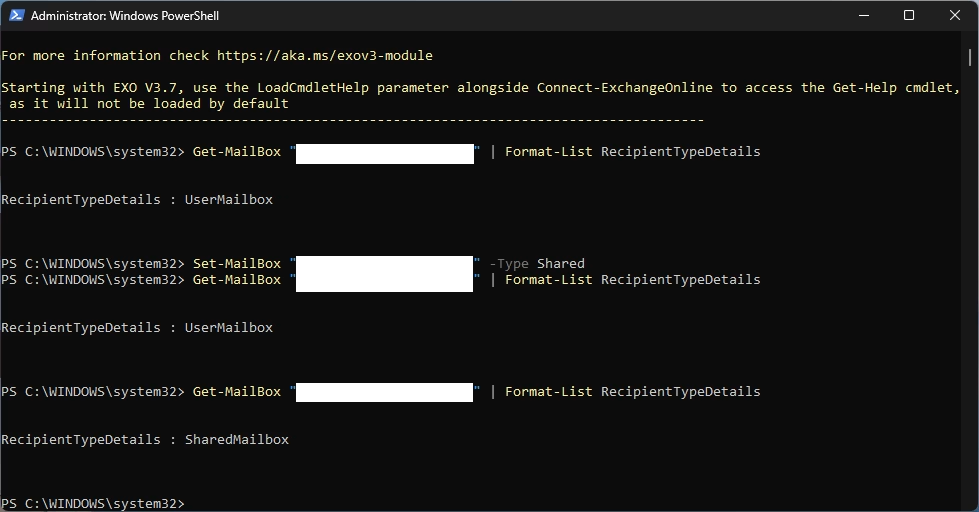
As shown above we can rerun the ‘Get-MailBox’ command to confirm the change. The change can take a few minutes to take affect.
With this done, we can check back on the Exchange Online portal. We can see that the mailbox is now listed as shared.
This is a bit of niche problem, however it is worth being aware of if you are running a hybrid Exchange environment.