
Deploying App Control for Business can greatly improve the security of your endpoint devices.
App Control for Business (formally Windows Defender Application Control(WDAC)) is the successor to App Locker allowing deeper control over what is allowed to run on your Windows endpoints.
Not to be confused with Deploying App Protection Policies!
It goes beyond App Locker which by default only targets standard (non admin) users. App Control policies cover all users including administrators and what code runs in the kernel. A full overview can be found here.
Deploying App Control for Business can be complex and does require thorough testing/piloting before it is rolled out to production. However, once configured it can be built upon and tweaked as needed. Documentation and a clear structure are key here!
App Control consists of a base policy and then additional (multiple) supplement policies.
A base policy should cover the defaults for anything that should be set for all, or a set of, devices.
Supplement policies should be additional rules which cover specific files paths, digital signatures and file hashes.
Supplement policies are linked to a base policy via the ‘BasePolicyID’ and will not take effect without the referenced base policy in place.
You can have multiple base policies with different supplement policies linked to each one (not something I am going to cover)
I will cover deploying App Control for Business on cloud native devices using Intune, where end users are running as standard and not admin.
Managed Installer
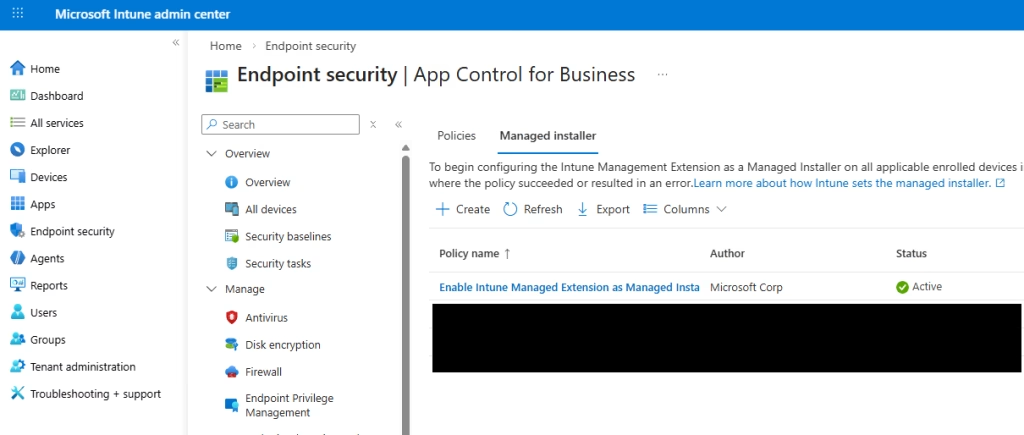
First off, it’s a good idea to enable ‘Managed installer’. With this, any applications deployed via Intune are automatically trusted by App Control for Business.
In Intune navigate to ‘Endpoint security > App Control for Business > Managed installer’ and click ‘Create‘.
Give it a name, under settings enable ‘Enable Intune Managed Extension as Managed Installer’ and deploy to your devices.
Base Policy
Create Base Policy
First, we start with our base policy, for this we can start with the default Windows policy. These can be found in Windows 11 in the following location:
C:\Windows\schemas\CodeIntegrity\ExamplePolicies\
DefaultWindows_Audit.xml
DefaultWindows_Enforced.xml
These are both the same however, one will ‘Audit’ policy violations where are ‘Enforced’ will block them.
This example policy is available in both audit and enforced mode. It includes rules to allow Windows, third-party hardware and software kernel drivers, and Windows Store apps. Used as the basis for the Microsoft Intune product family policies.
By default, this covers most standard deployments. Take a copy of DefaultWindows_Audit.xml and store it somewhere for later. You can open the XML file in notepad and see a breakdown of the rules here.
You can turn policy rule options on and off while testing the policy. Enable them one at a time to see what effect they have.
Proceed with caution and thoroughly test, you can easily render a device inoperable!
For editing and creating policies there are some handy apps. One is App Control for Business Wizard.
The other (and my preferred) is AppControl Manager which is available in the Microsoft Store.
This simplifies policy creation and is the easiest way to create your supplement policies.
Deploy Base Policy
Next, we will deploy our base policy to a test device, we can then build our supplement policies.
Ideally the test device should have all applications and programs required by your business. This way we can identify any that will be blocked.
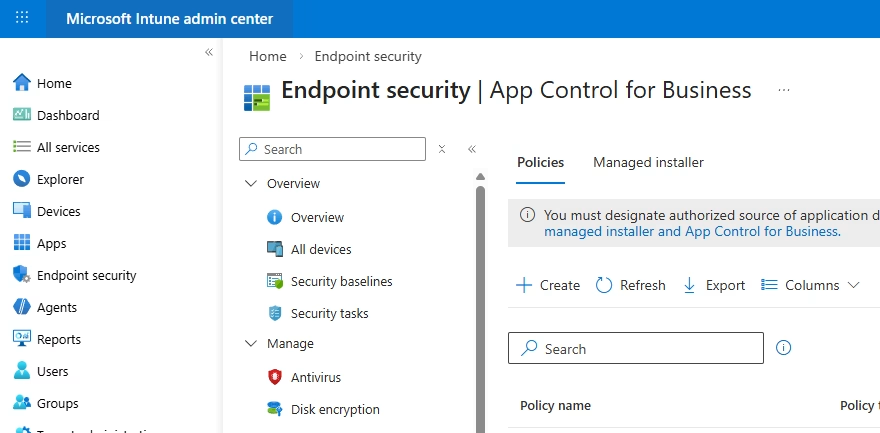
Navigate to ‘Endpoint security > App Control for Business’ and click ‘Create‘. Give the policy a name e.g. ‘ACfB – Base Policy 1’
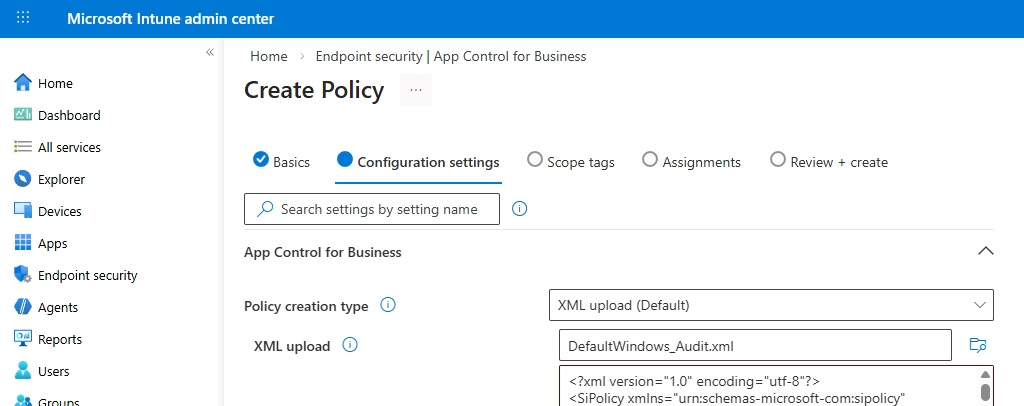
Under configuration settings change ‘Policy creation type‘ to ‘XML upload’ and upload the copy of the base policy from earlier. Assign it to your test device.
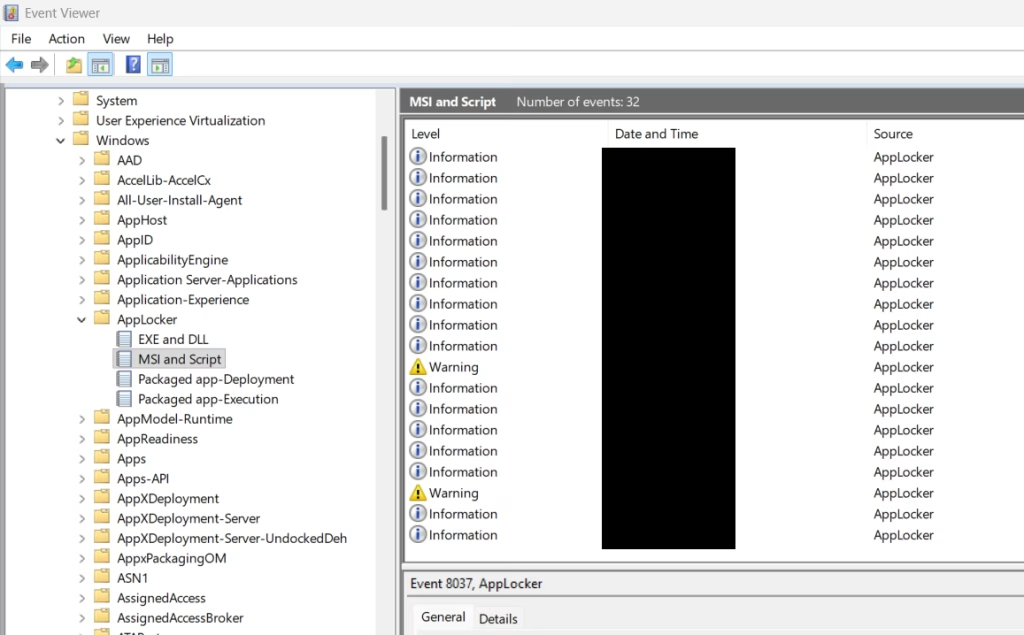
Once the policy takes effect, any policy violations will be logged in the event log.
- Applications and Services logs – Microsoft – Windows – CodeIntegrity – Operational includes events about App Control policy activation and the control of executables, dlls, and drivers.
- Applications and Services logs – Microsoft – Windows – AppLocker – MSI and Script includes events about the control of MSI installers, scripts, and COM objects.
Open all applications so that any violations are logged in event viewer.
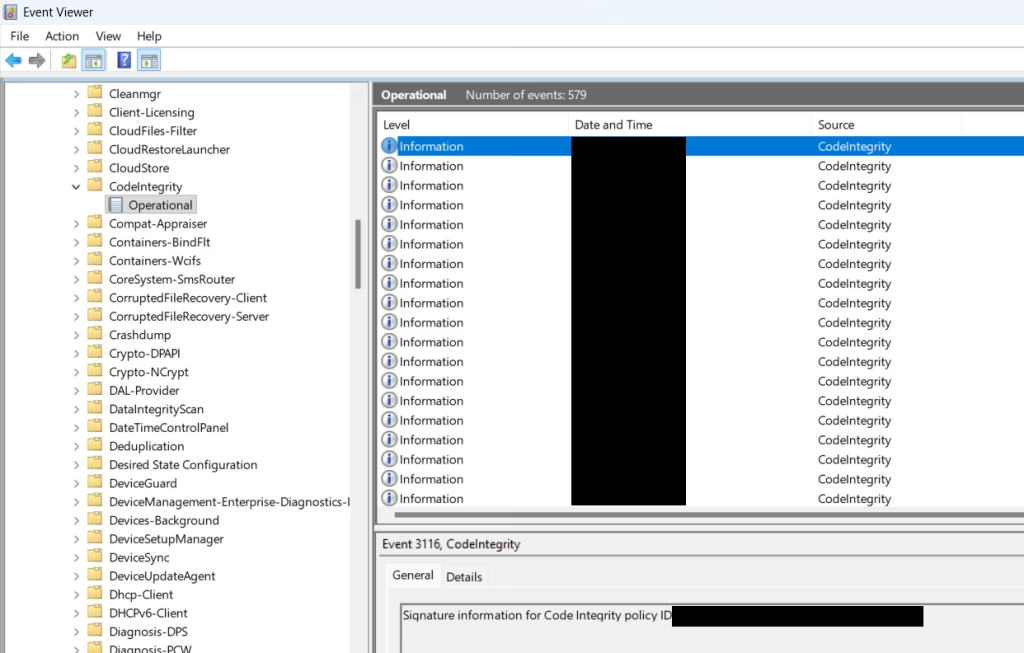
Using these logs, we can create supplement policies to allow additional legitimate programs not covered by the base policy.
Supplement Policies
Create Supplement Policies
My advice would be to create lots of smaller individual supplement policies which cover single applications or files. This way, when you need to troubleshoot an issue, you can enable and disable individual policies.
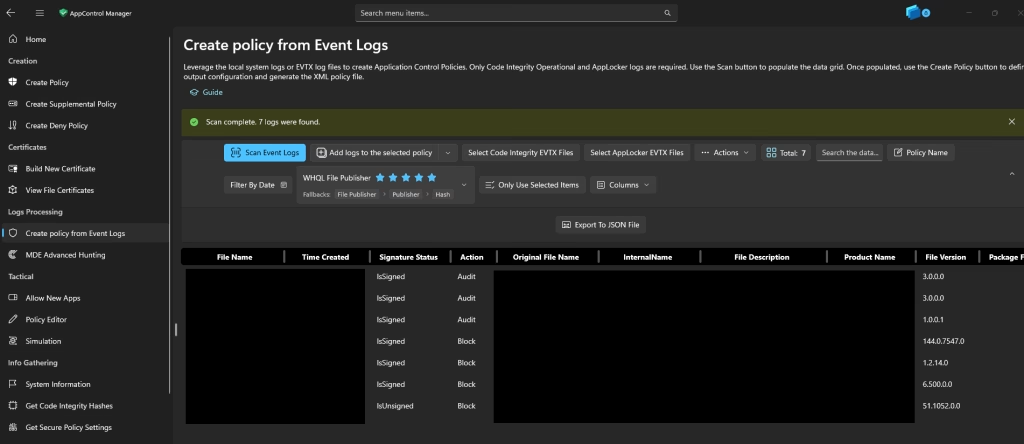
The quickest way to create a supplemental policy is to export the 2 logs from above and import them into AppControl Manager.
Select your 2 event logs and your base policy from earlier and create a supplement policy for selected/all entries in the list. Also choose your file rule level.
You can also create extra polices under Creation > Create Supplemental Policy. This is useful if you have a local folder with any files/applications you would also like to allow.
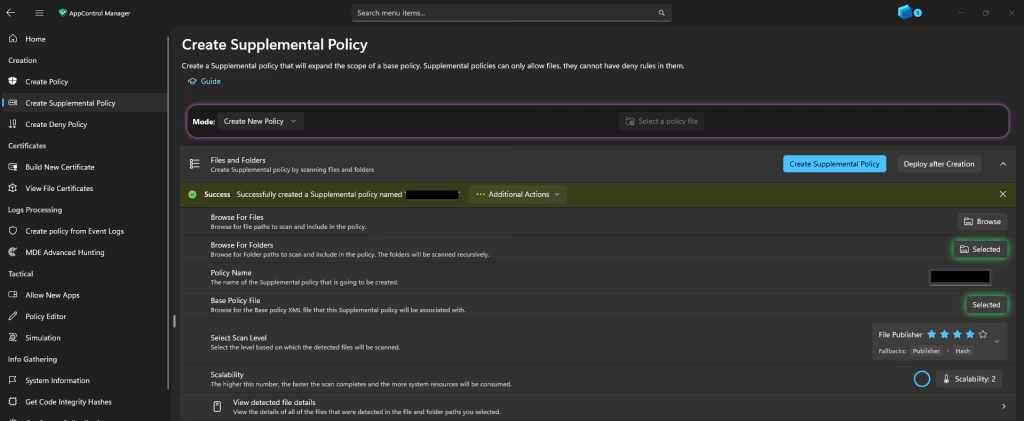
As our end users are standard and not admin, we can allow some known common folders (Program files, etc.)
Note
From my experience if you are using Windows LAPS with a new account created by Windows LAPS. Any filepath rules seem to get ignore. I believe this is because of the below statement (found here):
“There’s a defined list of SIDs that App Control recognizes as admins. If a filepath allows write permissions for any SID not in this list, the filepath is considered to be user-writeable, even if the SID is associated to a custom admin user. To handle these special cases, you can override App Control’s runtime admin-writeable check with the Disabled:Runtime FilePath Rule Protection option described earlier.“
When checking the list of ‘well-known admin SIDs’ the admin account created by Windows LAPS is not listed.
This may be by design, however, I have not managed to find any information regarding this anywhere.
To solve this issue, you need to add ‘Disabled:Runtime FilePath Rule Protection’ to your base policy which will stop this check from happing and honour any filepath rules.
It goes without saying that this isn’t ideal as it lessens the security of your policy. However, if your end users are only standard users and you have tight controls on admin accounts it should be minimal.
It’s also worth noting that the ‘Enabled:Update Policy No Reboot’ should allow policies to take effect without a restart. However, online sources report that this isn’t always the case. Especially with the ‘Disabled:Runtime FilePath Rule Protection’ policy rule.
It’s worth restarting the device when you change a policy.
Deploy Supplement Policies
We can now deploy our supplement policies exactly as we did with our base policy. Give it a relevant name such as ‘ACfB – BP1 – SP – Application’ and a good description.
Upload the XML file of your supplement policy and deploy it to the same test device.
You should see entries in the event logs for any policies applied to the device.
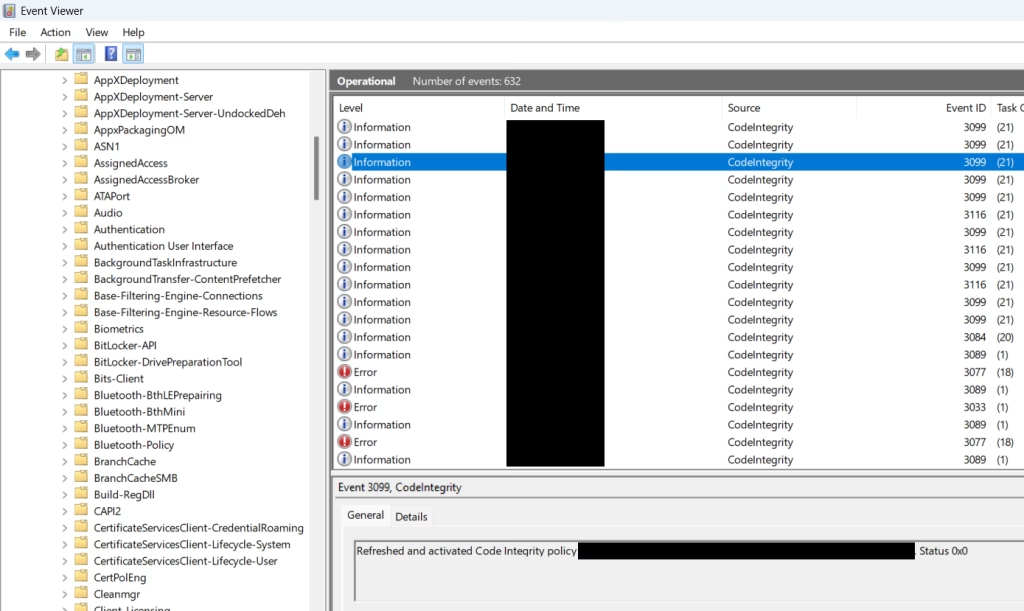
Go ahead and deploy any additional supplement policies you have created. Then test running previously blocked applications and see if they are logged in event viewer.
Update Base Policy
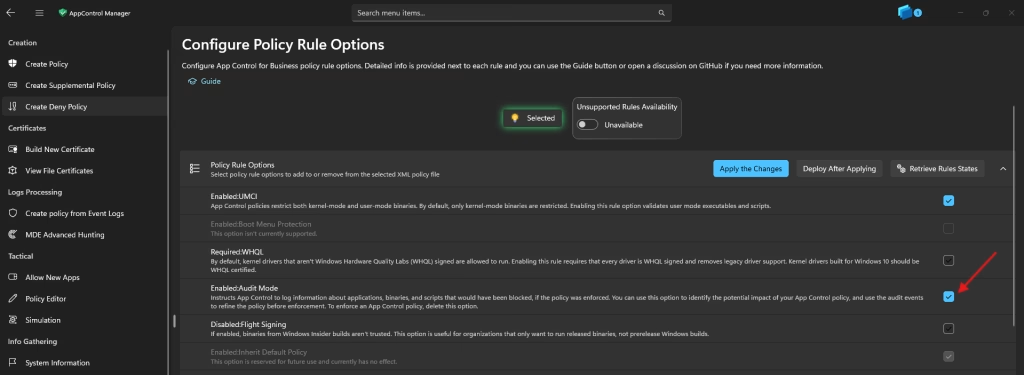
The next test is to edit your base policy and turn off audit mode. This will cause ACfB to actively block any policy violations.
You can do this by editing your base policy in AppControl Manager and unchecking ‘Enable:Audit Mode’.
Next, edit the original policy you deployed earlier and upload the new XML file in its place.
Note that the ‘<VersionEx>*</VersionEx>’ value of the policy must be the same or higher than the version that has already been deployed. If it is lower, the new policy will be ignored.
The <BasePolicyID> must stay the same.
Once this takes effect try running all applications, any that are blocked will be prevented from running.
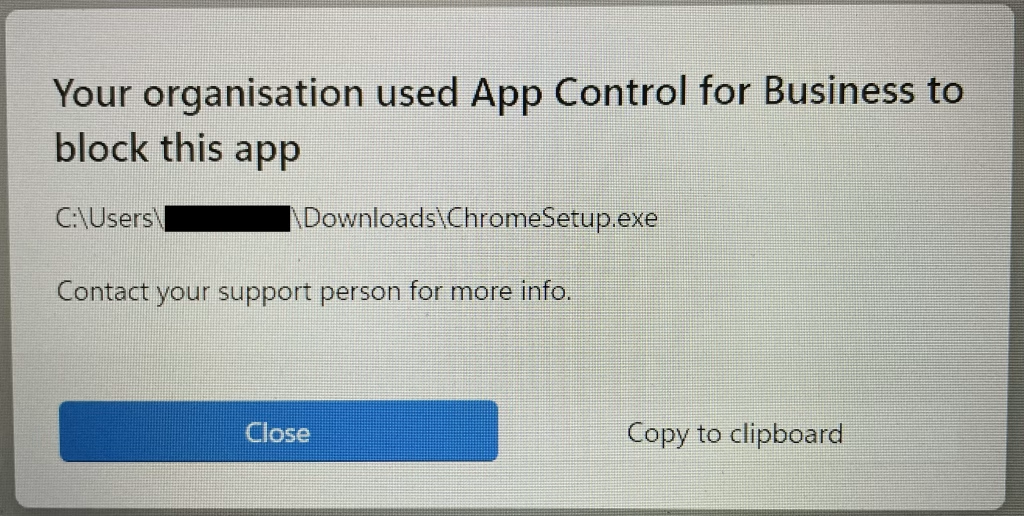
Also try anything which you would expect to be blocked.
Again, examine the event logs and create additional supplement policies for anything that has been missed.
Continue with this deploy > test > create process until you cover all applications and programs.
You can revert to audit mode at any time by reversing what you did earlier and re-enabling ‘Enable:Audit Mode’
Lastly, build a device from scratch with Autopilot and make sure all applications deploy as expected.
Conclusion
Deploying App Control for Business significantly hardens your end user devices against malicious code. It is a very powerful tool allowing granular control.
Moving forward new policies can be added as software is introduced. Or policies removed if applications are no longer required.