
Deploying app protection policies is a good step to help safeguard company data on personal mobile devices.
TL;DR: Deploy MAM policies to users, filtered to OS versions with a minimum OS version condition to stop access from unsupported devices.
Using app protection policies, you can specify custom data protection for data accessed via supported Microsoft apps. These include preventing data from being backed up to iTunes/iCloud, restricting copy/paste, encrypting data and more.
Also access requirements for selected apps, requiring a separate PIN for access and/or biometrics.
And lastly conditional launch settings with actions to wipe data or block access depending on the conditions met.
You can do this without the need to enrol your end user’s personal devices into Intune. Instead, we are using mobile application management (MAM) which targets ‘unmanaged’ devices.
The Microsoft learn article has a more in depth overview.
I am going to cover deploying app protection policies which have a minimum operating system version condition. This way we can block devices running unsupported OS’s from accessing company data on supported apps.
To achieve this, we first need to access our Intune portal and setup some Assignment filters, these will target specific groups of devices.
Assignment filters
iOS
We need to create filters so that we can group our devices together by operation system (iOS/Android) and OS version.
We will start with iOS, and the first one is for all devices on iOS 18 or below. As of writing this iOS 18 is the lowest supported iOS version and 26 being the next and newest.
In Intune click ‘Apps > Assignment filters > Create > Managed apps’
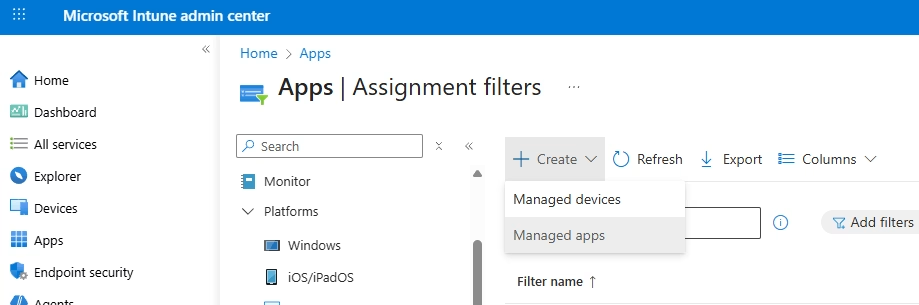
Give the filter a name, description and select ‘iOS/iPadOS’ for platform.
On the next page enter the expressions and values as below.
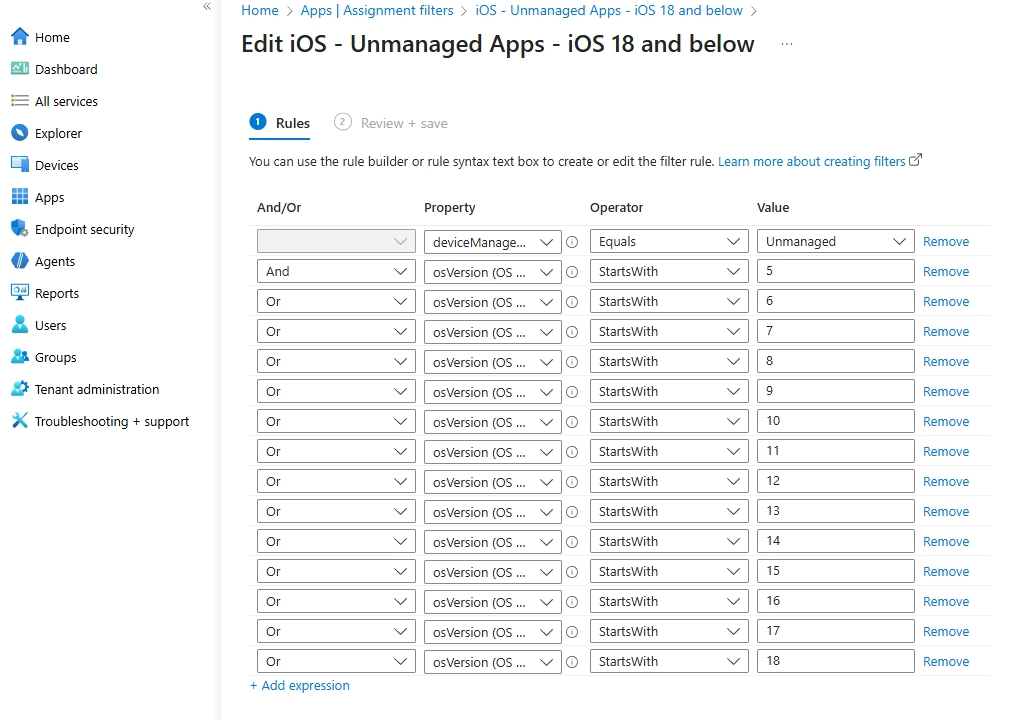
You can copy and paste the below into the ‘rule syntax’ box to create these quickly.
(app.deviceManagementType -eq "Unmanaged") and (app.osVersion -startsWith "5") or (app.osVersion -startsWith "6") or (app.osVersion -startsWith "7") or (app.osVersion -startsWith "8") or (app.osVersion -startsWith "9") or (app.osVersion -startsWith "10") or (app.osVersion -startsWith "11") or (app.osVersion -startsWith "12") or (app.osVersion -startsWith "13") or (app.osVersion -startsWith "14") or (app.osVersion -startsWith "15") or (app.osVersion -startsWith "16") or (app.osVersion -startsWith "17") or (app.osVersion -startsWith "18")A quick break down of what each expression does:
- app.deviceManagementType -eq “Unmanaged” – This will only select devices where device management is ‘Unmanaged’, basically any device NOT enrolled in Intune. Handy as you can set separate, less restrictive app protection policies for devices which you manage
- app.osVersion -startsWith “5” – Selects devices with an OS major version of ‘x’, 5 in this example
Click next and create the filter.
Next, we will do the same but for iOS 26, follow the same steps as before but use the below expressions:
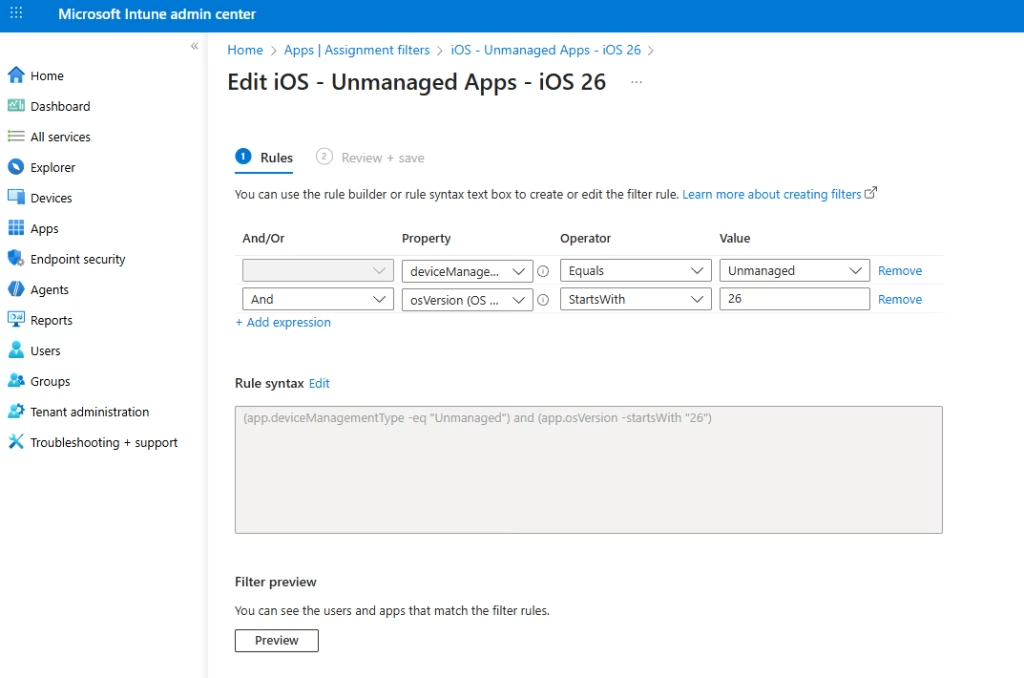
So, we now have our 2 filters to group our older iOS versions and 18, and our most recent iOS version 26.
Android
Now to do the same for our Android devices. We will only create one filter, as currently there is no easy way to group minor versions of the Android OS.
Following the same method as before, but choose ‘Android’ for ‘Platform’ and under the rules page add the below:
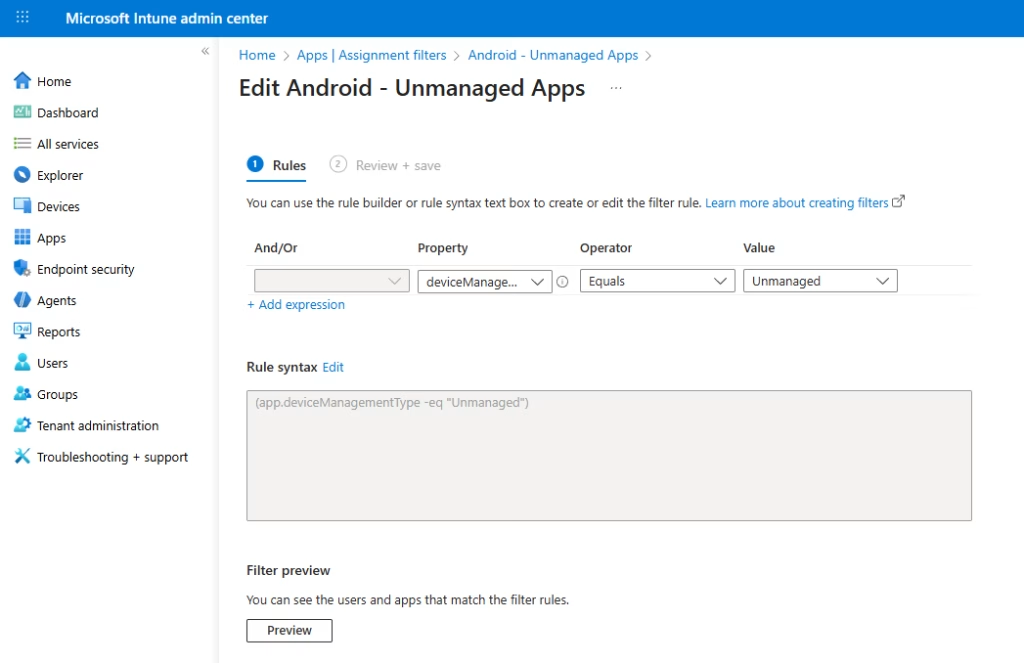
This will group all ‘unmanaged‘ Android devices together.
App Protection Policies
The next step is create and deploy App Protection Policies. There will be 1 for Android which will cover all Android devices and 2 for iOS, this allows us to set minimum OS versions for each group/filter
iOS
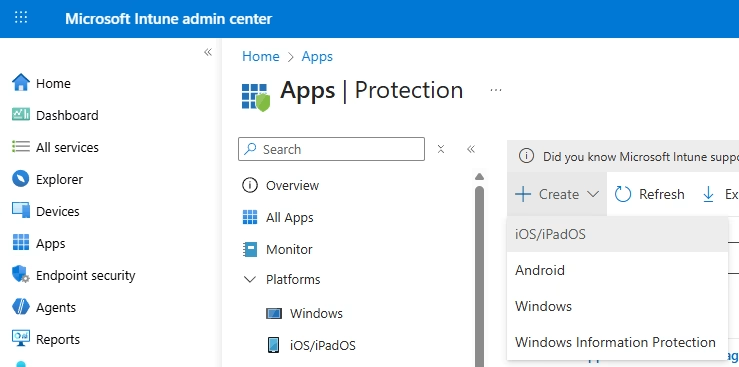
We will start with our iOS 18 and below policy, navigate to ‘Apps > Protection > Create’ and select ‘iOS/iPadOS’
Apps on iOS don’t require the Company portal app to be installed for the settings to be enforced.
This article covers all Android settings that can be configured.
Give it an appropriate name and description, on the Apps page select ‘Core Microsoft Apps’
On the next screen configure your data protection settings.
Then your access requirement settings, PIN length, biometrics, etc.
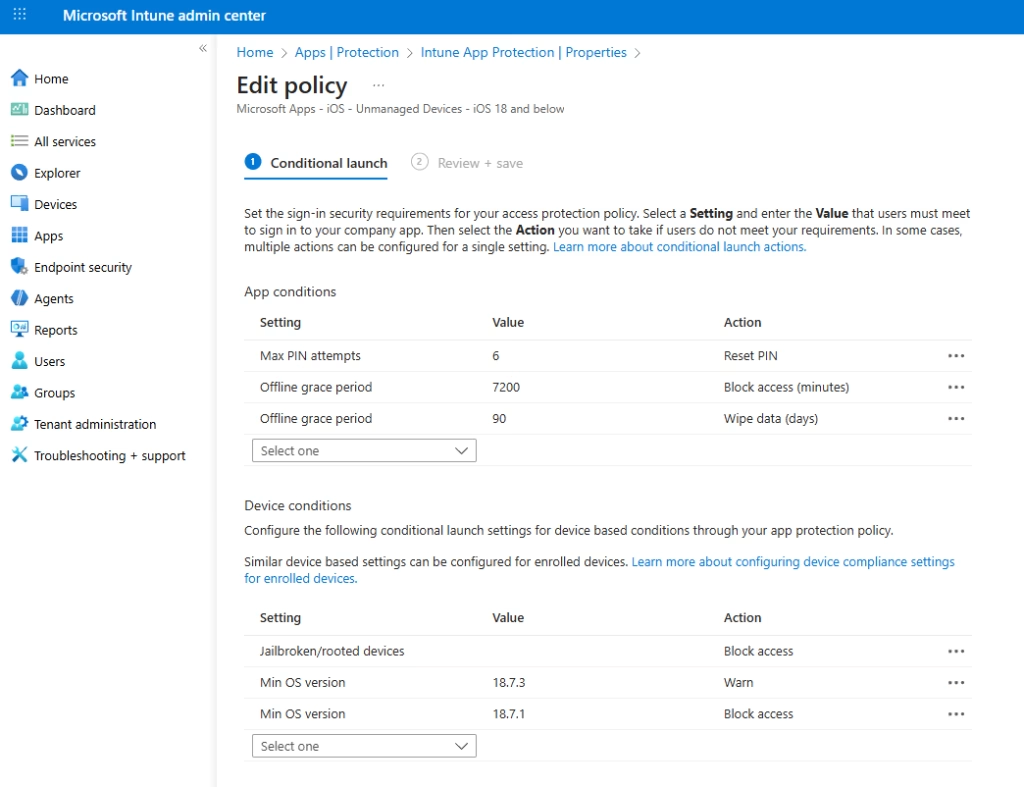
Lastly the conditional lunch settings, customise the app condition values to your liking. Under device conditions, we will add a minimum OS version.
The first is to warn users, I set this as the most recent supported iOS 18 version (18.7.3). Anyone not running the most recent release will get a warning when opening an app covered by this policy, but access will not be blocked. This gives them a nudge to update their device.
You can use this site to give you an idea of which version of iOS to set these at.
The next one is to block access, set this to an older iOS version. It is down to you what you deem as ‘too old’ and could be a potential risk to your company data. I set this to a version within the last few months. If the device falls below this version, they will be blocked from accessing company data when opening an app covered by this policy.
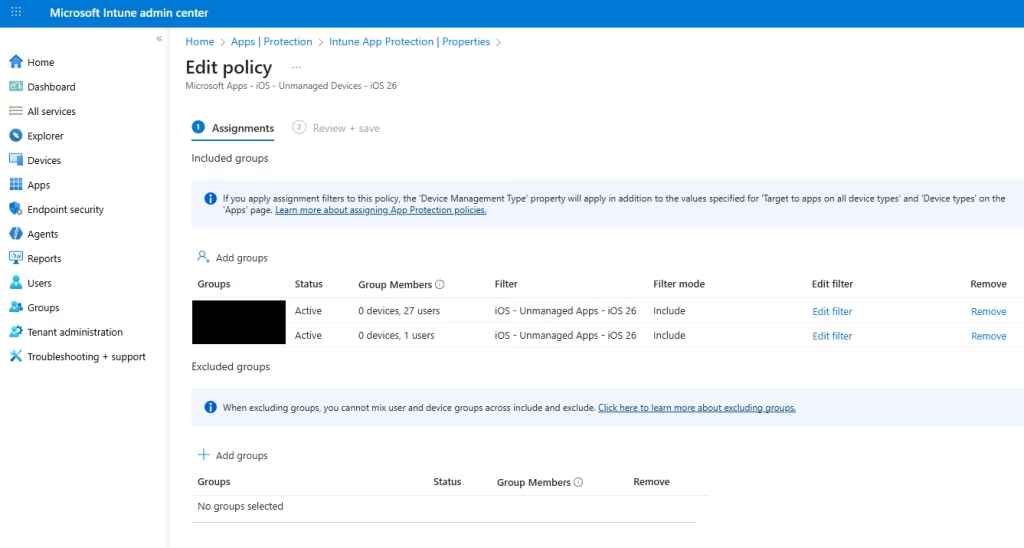
With this done move onto the ‘Assignments‘ page, select a group which contains the staff you would like this policy to apply to. Or chose the ‘All Users’ group.
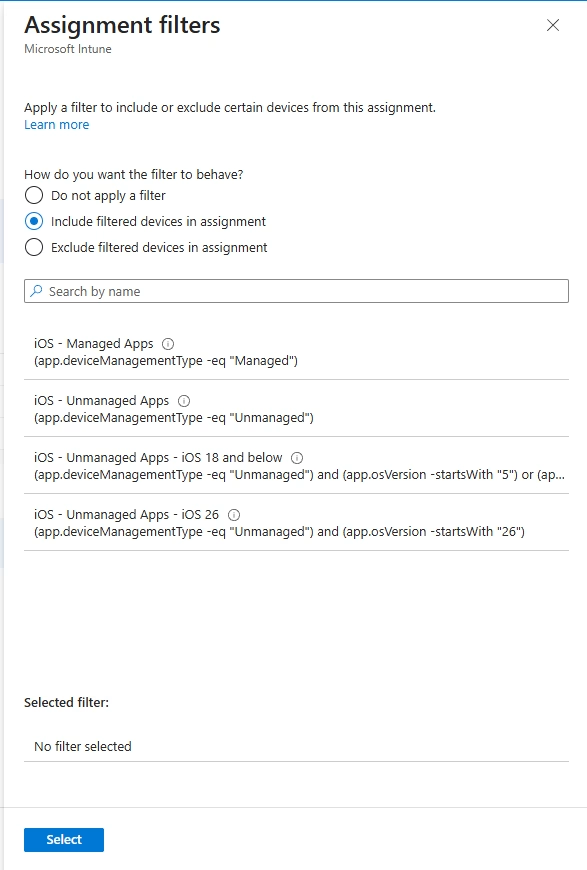
Click ‘Edit filter’ for that group, select ‘Include filtered devices in assignment’ and select the filter you created earlier which targets all iOS 18 and below devices.
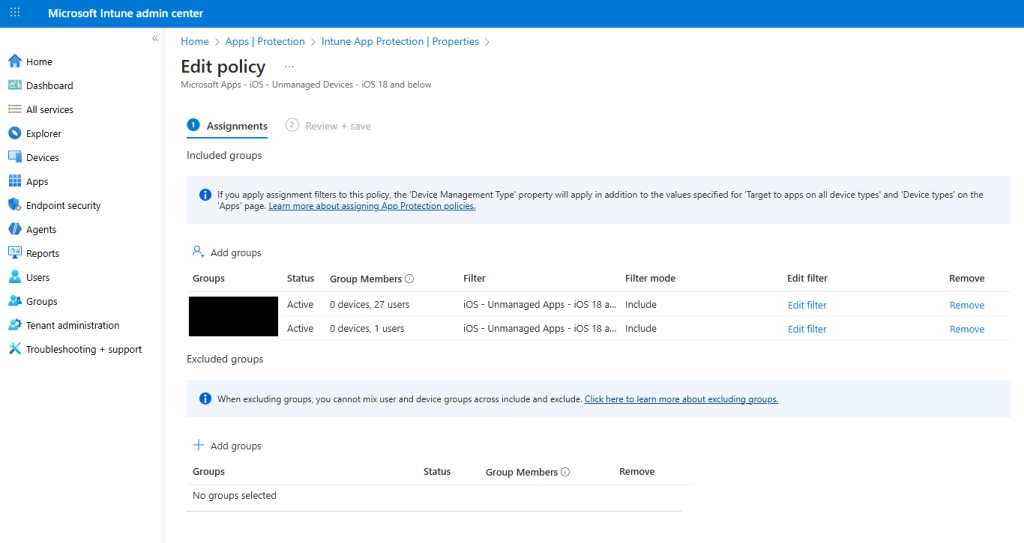
You can add additional groups the same way to cover more users.
For the next policy, follow the same steps as before, but now for iOS 26 devices. The difference comes on the conditional launch page.
Under device conditions we will set the ‘min OS version’ specifically for iOS 26. Again, we have a ‘Warn’ action set to the most recent version of iOS 26 (26.2.1) and a ‘Block’ for older versions of iOS 26.
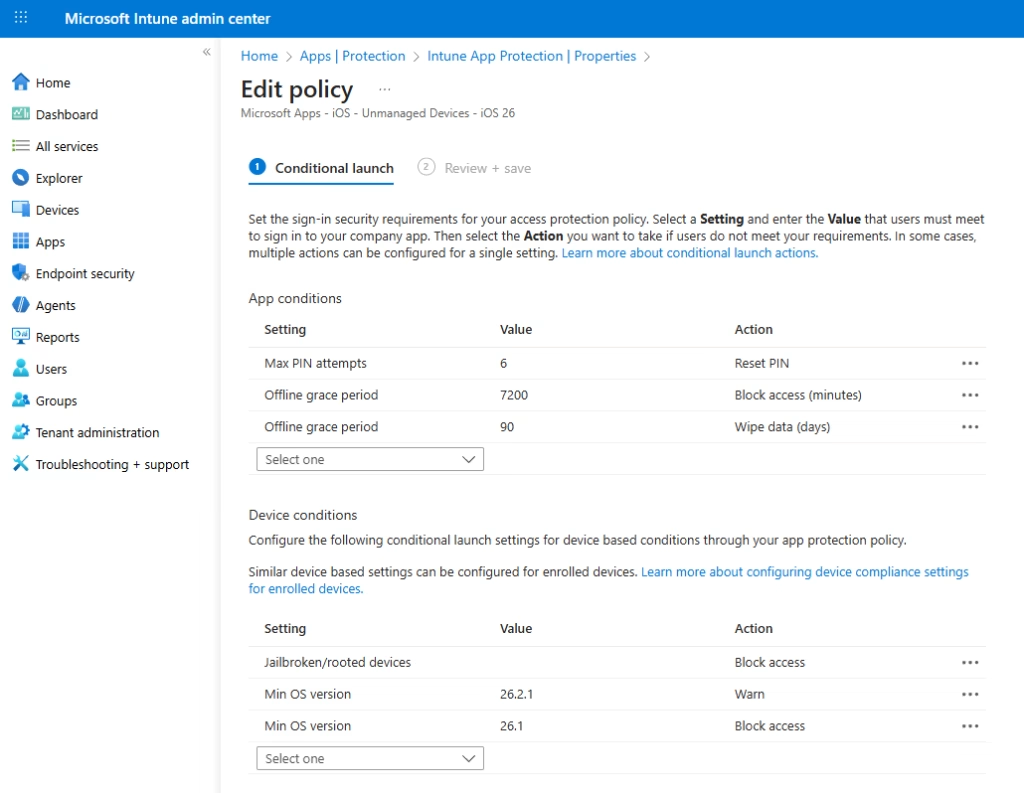
On the assignments page select your groups (same ones as before) but apply the filter that targets all iOS 26 devices.
Android
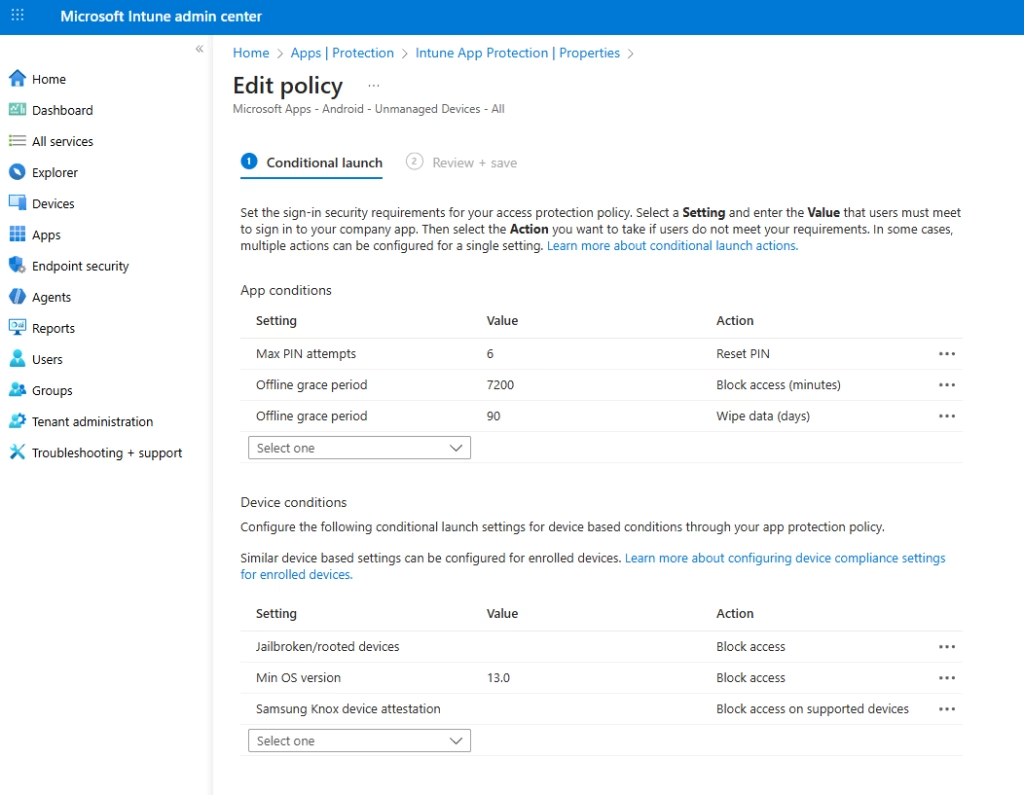
The last one is for Android devices. You can set the same data protection and access requirements as you did for iOS. On the conditional lunch page, we need to add a ‘min OS version’ for Android.
You can use this site to give you an idea of which version of Android to set these at.
At the time of writing, the oldest supported major version is 13. However there is no way to specify minor versions of the OS (like we did for iOS). Not ideal but at least we can block older versions of Android (12 and below)
Apps on Android require the Company portal app to be installed for the settings to be enforced. Access is blocked until the Company portal is installed.
This article covers all Android settings that can be configured.
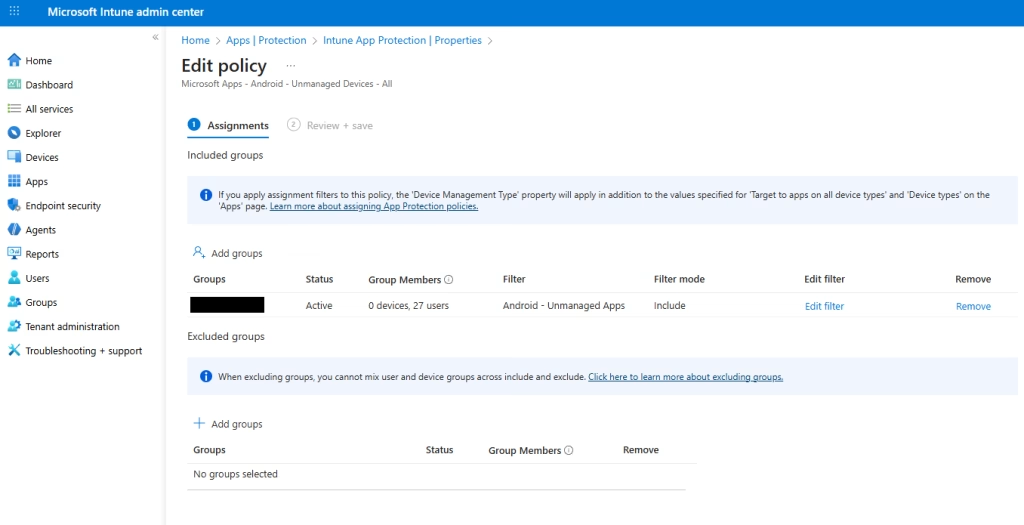
On the assignments page we can use the same groups as we did for the iOS policies however, we are selecting the filter which targets Android devices.
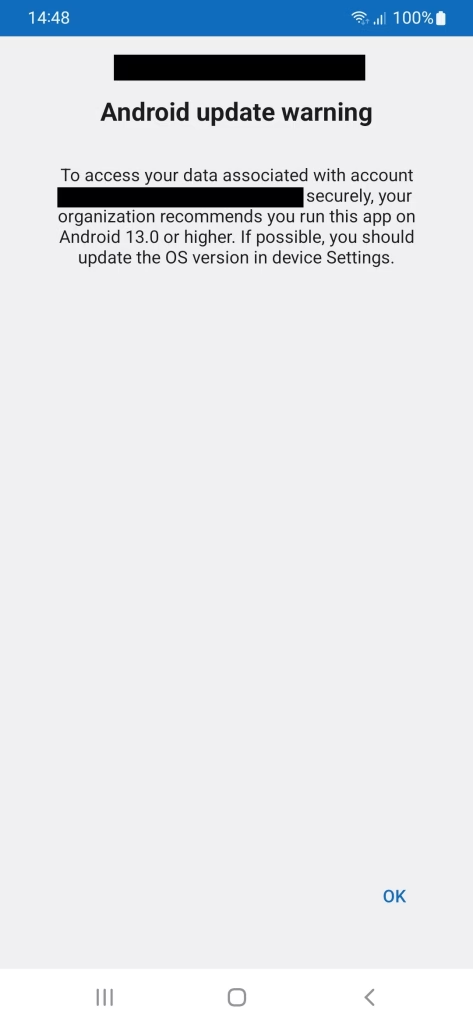
With these in place if we use the Outlook app on a device with an OS older than the ‘min OS version’ set to warn, we get the below message.
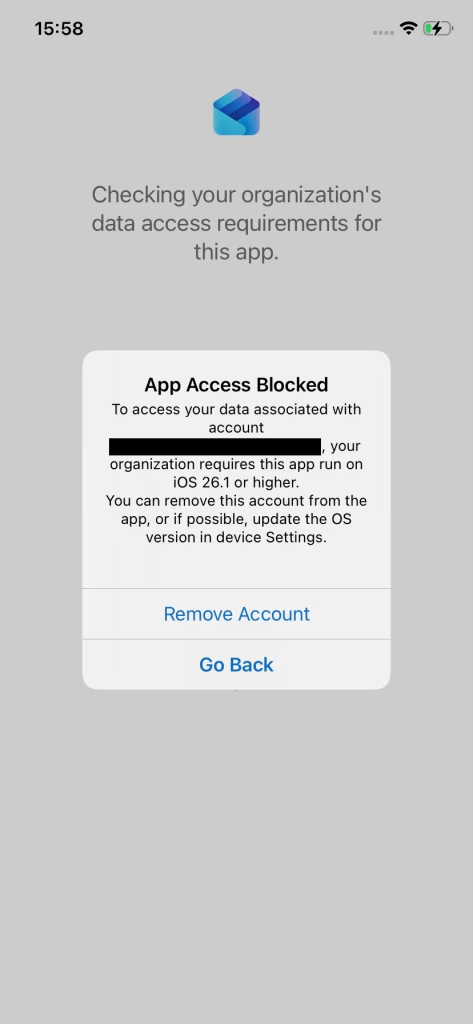
Or when using the Outlook app on a device with an OS older than the ‘min OS version’ set to block, we get the below message.
You just need to keep an eye on those iOS and Android OS versions in the future. You can then re-evaluate your policies to reflect.
Conclusion
Deploying App Protection Policies allows you to take another step to help protect your corporate data. You can control access to data via apps which support MAM. You can do this without the need to enrol your end user’s personal devices into Intune.
Some third-party applications also support MAM. Moving forward you can deploy policies to cover additional non-Microsoft apps.